This is a lesson in adding sound to the button down state and editing
the sound effects in flash.
You will need
this file to do this tutorial. Unzip and open it.
1.
Open your library by hitting your F11. In your library you will see a button
symbol of the key and a sound clip of a typing click sound. Double click the
icon in front of the key symbol to edit the button.
2. On the key symbol you will see 4 locked layers that represent the
graphics of the symbol. click on the top layer, highlights. Click the button
to insert a layer. Rename the layer Sound.
3.
Click in the down frame of the Sound layer. hit F7 to insert a blank
keyframe.
4.
Open the properties inspector below. With the frame for down on the sound
layer highlighted you will see the sound box on the properties inspector,
since sound is a property of a frame. Set the sound box to Type.wav
which is in the drop down menu for sound. Any sound file imported t the
library will appear in this box. On the time line you will see a picture of
the sound wav in the key frame.
5.
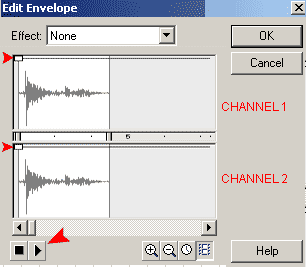
Click the edit button in the properties inspector for the sound.. Notice
there are two wav diagrams. They represent the two different channels, left
and right speakers.
The squares are the volumes of each (aplitude). Play with the square by
setting one to the bottom of its respective box and play the sound on the
preview sound button below. Reverse the channels settings. This clearly
demonstrates how you can control which speaker the sound is coming from.
Click
the magnify button to closer inspect the sound wave form. Set the
Effect to Fade Left to Right. Test the sound using the play button at the
bottom of the edit envelope.
Drag the top speaker volume at the beginning down to the halfway point.
Move the bottom speaker volume at the end of the wav to the halfway point.
This will cut the volume of the original wave down and create a stereo
effect for this sound.
The
end result for the wave form should look similar to the image on the right.
Click ok when you are satisfied with the soft typing sound.
By editing the symbol in the library, it changes all instances of the
symbol on the stage. Each key is an instance and now should create a sound
when clicked.
6. Click back on scene 1 to edit the scene. Lock Layer 1. Insert a layer
and rename it to text. Select your type tool from the toolbox.
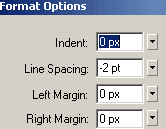
Set the properties inspector to static, Arial, 6, dark gray, center
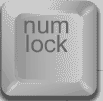
and click the format button. Set line spacing to -2pt. Type in num lock for
the first button. Use the move tool to position the text on the button.
7. Switch the font to a size 10 font. Match your key markings from your
keyboard on your flash keyboard.






 1.
Open your library by hitting your F11. In your library you will see a button
symbol of the key and a sound clip of a typing click sound. Double click the
icon in front of the key symbol to edit the button.
1.
Open your library by hitting your F11. In your library you will see a button
symbol of the key and a sound clip of a typing click sound. Double click the
icon in front of the key symbol to edit the button. 3.
Click in the down frame of the Sound layer. hit F7 to insert a blank
keyframe.
3.
Click in the down frame of the Sound layer. hit F7 to insert a blank
keyframe. 4.
Open the properties inspector below. With the frame for down on the sound
layer highlighted you will see the sound box on the properties inspector,
since sound is a property of a frame. Set the sound box to Type.wav
which is in the drop down menu for sound. Any sound file imported t the
library will appear in this box. On the time line you will see a picture of
the sound wav in the key frame.
4.
Open the properties inspector below. With the frame for down on the sound
layer highlighted you will see the sound box on the properties inspector,
since sound is a property of a frame. Set the sound box to Type.wav
which is in the drop down menu for sound. Any sound file imported t the
library will appear in this box. On the time line you will see a picture of
the sound wav in the key frame.
 5.
Click the edit button in the properties inspector for the sound.. Notice
there are two wav diagrams. They represent the two different channels, left
and right speakers.
5.
Click the edit button in the properties inspector for the sound.. Notice
there are two wav diagrams. They represent the two different channels, left
and right speakers.  Click
the magnify button to closer inspect the sound wave form. Set the
Effect to Fade Left to Right. Test the sound using the play button at the
bottom of the edit envelope.
Click
the magnify button to closer inspect the sound wave form. Set the
Effect to Fade Left to Right. Test the sound using the play button at the
bottom of the edit envelope.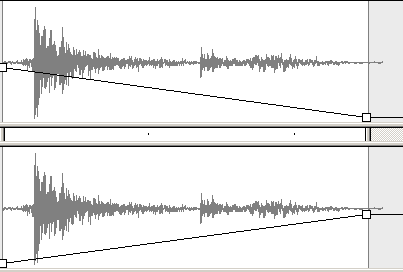 The
end result for the wave form should look similar to the image on the right.
The
end result for the wave form should look similar to the image on the right.